
How to Upload and Analyze Your Own GeoTIFF in the Browser
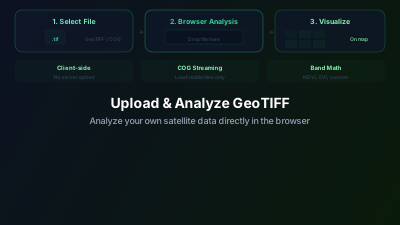
Quick Answer: Off-Nadir Delta's Data Loader lets you upload GeoTIFF and Cloud-Optimized GeoTIFF (COG) files directly in the browser. Drag-and-drop your file, adjust visualization parameters, and overlay it with live satellite imagery. No software installation, no file conversion, no server upload required — the data stays in your browser.
Why Upload Your Own Data?
Satellite imagery from Sentinel-1 and Sentinel-2 covers the globe, but many analysis workflows involve custom datasets:
- Derived products — NDVI composites, classification maps, or DEM data processed in other tools
- Historical archives — Older satellite data not available through standard STAC APIs
- Drone imagery — High-resolution orthomosaics from UAV surveys
- Model outputs — Flood models, land use predictions, or climate projections in raster format
Being able to overlay these custom datasets with live satellite imagery — without leaving the browser — eliminates the constant switching between tools that slows down analysis.
Supported Formats
The Data Loader accepts:
| Format | Extension | Notes |
|---|---|---|
| GeoTIFF | .tif, .tiff | Standard georeferenced raster |
| Cloud-Optimized GeoTIFF (COG) | .tif | Preferred for large files — supports partial loading |
| GeoJSON | .geojson, .json | Vector boundaries and features |
For raster data, Cloud-Optimized GeoTIFF is recommended for files larger than ~50MB, as it supports progressive loading without downloading the entire file.
Step-by-Step: Uploading a GeoTIFF
1. Prepare Your File
Ensure your GeoTIFF has:
- A coordinate reference system (CRS) — EPSG:4326 (WGS 84) or EPSG:3857 (Web Mercator) work best. Most CRS are supported and will be reprojected automatically.
- Valid data range — Know the expected min/max values for proper visualization
2. Open the Data Loader
Navigate to the Data Loader from the sidebar or main menu. You'll see a drag-and-drop zone.
3. Upload Your File
Drag your GeoTIFF file onto the upload zone, or click to browse. The file is processed entirely in your browser — nothing is uploaded to a server.
4. Adjust Visualization
Once loaded, your data appears on the map. You can:
- Adjust min/max values to optimize contrast for your data range
- Apply colormaps (grayscale, viridis, plasma, inferno, etc.)
- Set opacity to see satellite imagery beneath your overlay
5. Combine with Satellite Data
With your GeoTIFF loaded, search for satellite imagery over the same area. Both layers will appear in the layer manager, where you can:
- Toggle visibility
- Adjust layer order
- Compare your data against the satellite background
Practical Use Cases
Overlay a DEM with Optical Imagery
Upload a digital elevation model to understand topographic context when interpreting satellite imagery. Mountains, valleys, and slope aspects significantly affect what you see in both optical and SAR imagery.
Compare Your Classification with Source Data
Upload a land use classification map and overlay it with the Sentinel-2 imagery it was derived from. This visual comparison helps identify misclassification areas that need refinement.
Validate Flood Models
Upload a flood model's predicted inundation extent and compare it against actual SAR-based flood observations. The difference between predicted and observed flooding reveals model accuracy.
View Historical Imagery
Upload archived satellite imagery (Landsat, SPOT, etc.) and compare it with current Sentinel-2 data to analyze long-term land use change.
GeoTIFF Preparation Reference
Before uploading, ensure your file meets these parameters for best browser compatibility and performance:
| Parameter | Recommended | Notes |
|---|---|---|
| CRS | EPSG:4326 or EPSG:3857 | Other CRS are supported but auto-reprojection adds latency |
| Tiling | 256×256 or 512×512 | Mandatory for COG; enables efficient partial loading |
| Compression | LZW / DEFLATE (lossless) | JPEG is smaller but lossy — avoid for scientific data |
| Data type | Float32 or UInt16 | Float64 doubles memory with no visual benefit |
| NoData value | Explicitly set (e.g., −9999 or NaN) | Prevents black borders and misleading zero-value pixels |
| Overviews | Required for COG (pyramid levels) | Without overviews, loading at low zoom is extremely slow |
| Band count | 1–4 optimal | Each additional band increases memory use linearly |
| File size | Standard GeoTIFF < 200MB; COG: any | 500MB+ standard GeoTIFF will hang most browsers |
Quick conversion to COG with GDAL:
gdal_translate -of COG -co COMPRESS=DEFLATE -co BLOCKSIZE=512 input.tif output_cog.tif
Tips for Best Results
File Size Considerations
- Files under 100MB load quickly in most browsers
- For larger files, convert to Cloud-Optimized GeoTIFF first — this allows the browser to load only the portion visible at your current zoom level
- Single-band files are faster to load than multi-band files
Coordinate System
If your file uses a local or uncommon CRS, it will be reprojected on the fly. For fastest performance, pre-convert to EPSG:4326 or EPSG:3857.
NoData Values
Ensure your GeoTIFF has proper NoData values set for areas without data. This prevents black borders or zero-value artifacts when overlaying with other data.
Multi-Band Files
For multi-band GeoTIFFs, the Data Loader will display the first band by default. You can select different bands or band combinations depending on your data.
Privacy and Security
Your uploaded data never leaves your browser. The Data Loader uses client-side JavaScript to read and render the GeoTIFF — no server upload occurs. This means:
- No data transfer — Your proprietary data stays on your machine
- No storage costs — Nothing is stored on our servers
- No size limits from server upload — Limited only by your browser's memory
Try It Now
- Go to the Data Loader
- Upload any GeoTIFF file you have
- Adjust the visualization parameters
- Search for satellite imagery over the same area to create a composite view
If you don't have a GeoTIFF handy, try downloading a free DEM tile from OpenTopography or a Landsat scene from USGS EarthExplorer.

Remote sensing specialist with 10+ years in satellite data processing and AI. Founder of Off-Nadir Lab. Ph.D. in Informatics (Yokohama National University, 2026). Master's in Earth System Science and Technology (Kyushu University). Co-author, Remote Sensing Encyclopedia. More about the author →