
Getting Started with Sentinel-1 SAR Imagery: A Beginner's Guide
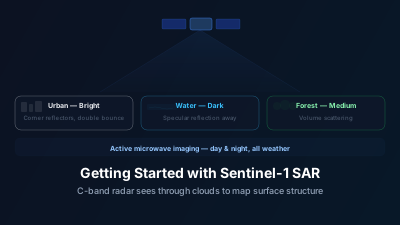
Quick Answer: Sentinel-1 SAR provides cloud-penetrating radar imagery updated every 6 days. Calm water reads −20 to −25 dB (very dark), dry farmland −8 to −12 dB (medium gray), and urban areas −2 to +3 dB (bright). With Off-Nadir Delta, you can access and visualize SAR data directly in your browser — no GIS software needed. This guide walks you through searching, loading, and interpreting your first SAR image.
What is Sentinel-1 SAR?
Sentinel-1 is a radar satellite mission operated by the European Space Agency (ESA) as part of the Copernicus programme. Unlike optical satellites that capture visible light, Sentinel-1 uses Synthetic Aperture Radar (SAR) — an active sensor that transmits microwave pulses and records the backscattered signal.
This gives SAR three major advantages:
- Cloud penetration: Radar waves pass through clouds, enabling observation in any weather
- Day and night operation: SAR provides its own illumination, so it works 24/7
- Surface structure sensitivity: Radar responds to surface roughness, moisture, and geometry
Why Use SAR Data?
SAR imagery is essential for applications where optical data falls short:
| Application | Why SAR? |
|---|---|
| Flood mapping | Water appears dark in SAR, making flood extent clearly visible |
| Ship detection | Metal vessels produce strong radar reflections on dark ocean backgrounds |
| Deforestation monitoring | Works through tropical cloud cover that blocks optical sensors |
| Urban change detection | Buildings produce distinctive radar signatures |
| Soil moisture estimation | Radar backscatter correlates with surface moisture content |
Step-by-Step: Your First SAR Image
1. Navigate to Your Area of Interest
Open the map and zoom to your target area. For this example, let's look at a coastal city — these areas show excellent SAR contrast between water (dark) and urban areas (bright).
2. Open the Satellite Images Panel
Click the satellite icon in the sidebar to open the Satellite Images panel. Select Sentinel-1 GRD as your data source.
3. Set Your Search Parameters
- Date range: Start with the last 30 days for recent imagery
- Polarization: VV is typically best for water/flood applications; VH works better for vegetation
4. Search and Add to Map
Click "Search" to find available imagery. The results will show footprint outlines on the map. Click any result to see metadata (date, orbit direction, etc.), then click "Add to Map" to load the imagery.
5. Interpret the Image
In a SAR image:
- Bright areas: Strong radar return — urban areas, ships, rough surfaces
- Dark areas: Weak radar return — calm water, smooth surfaces, shadows
- Speckle: The grainy texture is inherent to SAR (coherent imaging system noise)
Tips for Better SAR Analysis
- Compare ascending and descending passes — different look angles reveal different features
- Compare multiple dates — load imagery from different dates and toggle between them to spot changes like floods or deforestation
- Adjust visualization parameters — the default min/max may not be optimal for your area
- Consider the polarization — VV emphasizes surface scattering, VH emphasizes volume scattering
Typical Backscatter Values You'll Encounter
Knowing approximate backscatter levels helps you quickly assess whether a scene looks reasonable — and spot anomalies. These are typical Sentinel-1 IW GRD VV backscatter values in decibels (dB) for mid-latitude conditions at moderate incidence angles (~35–40°):
| Surface Type | σ⁰ VV (typical range) | How It Appears |
|---|---|---|
| Calm open water | −20 to −25 dB | Very dark, near-black |
| Flooded field (standing water) | −14 to −18 dB | Dark gray |
| Dry agricultural field | −8 to −12 dB | Medium gray |
| Dense forest | −5 to −8 dB | Medium-bright gray |
| Urban fabric | −2 to +3 dB | Bright |
| Metal structures / ships | > 0 dB | Saturated bright spots |
These ranges shift with incidence angle (backscatter falls off as the angle from nadir increases), surface moisture, and season. Note that moisture and standing water push backscatter in opposite directions: damp soil is a better reflector than dry soil and so reads brighter, whereas a smooth sheet of standing water reflects the radar away from the sensor and reads much darker. A bare field can therefore brighten after rain and go near-black once it actually floods. Treat these figures as starting points, not absolute rules.
What a typical coastal city looks like: Harbor water appears near-black. The urban core is bright, with denser industrial zones and metal rooftops standing out as the brightest patches. Parks and recreational fields show as medium gray. This contrast makes urban–water boundaries trivially easy to identify in SAR, even before you understand the physics.
Understanding and Handling Speckle
SAR images have a characteristic salt-and-pepper texture called speckle. Unlike sensor noise, speckle arises from the coherent interference of the radar signal across multiple scatterers within a single resolution cell. It is physically meaningful but visually distracting.
The key practical implication: do not over-interpret individual pixels. A single bright pixel in a dark scene is not necessarily a ship or metal object — it might be specular reflection from a building corner or a flagpole. Patterns across dozens of pixels are far more meaningful than isolated values.
For any quantitative measurement (e.g., flood extent thresholding, deforestation detection), averaging values spatially over at least 5×5 pixels substantially reduces speckle variance. Time-compositing — averaging several scenes over a few weeks — reduces it further while maintaining good temporal resolution for change detection.
How Many Scenes Will You Find?
A common first-search experience: you search a large date range expecting to find one or two scenes, only to discover there are far more than expected — or frustratingly few. Four things drive how many results you get, and none of them is the date range alone:
- Whether the area is in a systematically acquired zone. Sentinel-1 follows a published observation scenario rather than imaging everything equally. Most land is acquired routinely; large stretches of open ocean outside maritime monitoring zones are not.
- How many orbit tracks overlap your bounding box. Adjacent tracks overlap, so a box that straddles two tracks returns roughly twice what a box inside a single track does — for the same period and the same satellite.
- Latitude. Orbit tracks converge toward the poles, so high-latitude areas are revisited more often than equatorial ones.
- Ascending vs. descending. Results include both unless you filter. If you filter to one orbit direction — which you should, when comparing backscatter across dates, so the viewing geometry stays constant — expect roughly half as many scenes.
First-time search tip: Start with a 3–6 month date range. If you get too many results, narrow it, or filter to a single orbit direction. If you get zero, check whether your bounding box actually falls in a routinely acquired zone before assuming the search is broken — and widen the box slightly, since a small box can fall between the scene footprints you were expecting.
Common Questions
Q: Why does my SAR image look grainy? A: This is called "speckle" — it's an inherent property of coherent imaging systems like SAR. It's not noise in the traditional sense, but rather interference between scatterers within each resolution cell.
Q: What's the difference between GRD and RTC? A: GRD (Ground Range Detected) is the basic SAR product. RTC (Radiometrically Terrain Corrected) compensates for terrain effects, providing more accurate backscatter values — especially important in mountainous areas.
Q: How often is Sentinel-1 data updated? A: Sentinel-1 has a 6-day repeat cycle over most land areas, though coverage varies by region.
Next Steps
- Try Change Detection to compare SAR images from different dates
- Explore Flood Mapping with SAR for disaster response applications
- Learn about SAR vs Optical imagery to choose the right data for your analysis
Related reading
Two follow-ons once you are reading scenes comfortably. Layover and shadow explains why part of a scene over relief is unmeasurable and how to compute how much before the pass, and satellite pass prediction covers when the next usable acquisition arrives.

Remote sensing specialist with 10+ years in satellite data processing and AI. Founder of Off-Nadir Lab. Ph.D. in Informatics (Yokohama National University, 2026). Master's in Earth System Science and Technology (Kyushu University). Co-author, Remote Sensing Encyclopedia. More about the author →